Macros
Macros are node-based composable actions. Ok, what does that mean for you?
They can be used to create complex controls easily. As an example, you could build a macro to send yourself an email, change a crosspoint, and send an OSC message.
They consist of triggers, commands, inputs, outputs, and transformers. Triggers, for example an OSC message, fire the macro. Commands execute actions, like muting an OCA/AES70-capable amplifier. Inputs allow for streaming data in. Outputs allow for streaming data out. Transformers modify the macro execution with blocks like delay.
Creating, editing, and deleting triggers and commands is permission-gated. The buttons stay where they are either way, they just go dim, and hovering one tells you which permission you need.
Build a Macro
Section titled “Build a Macro”Let’s make our first macro! This example will be creating a trigger macro.
- Click the Plus
+next to the macro dropdown. - Enter a name and change the debounce value is desired. Debounce is the time allowed before firing again.
- Press
⏎to save, orescto discard, or click the buttons. - Now, if you don’t have any triggers create one.
- Drag the created trigger to the triggers node.
- If you don’t have a command, create one. (email is quick)
- Drag the command onto the macro canvas.
- Connect the trigger node to the command node.
- Click
Savein the top right corner.
Macros
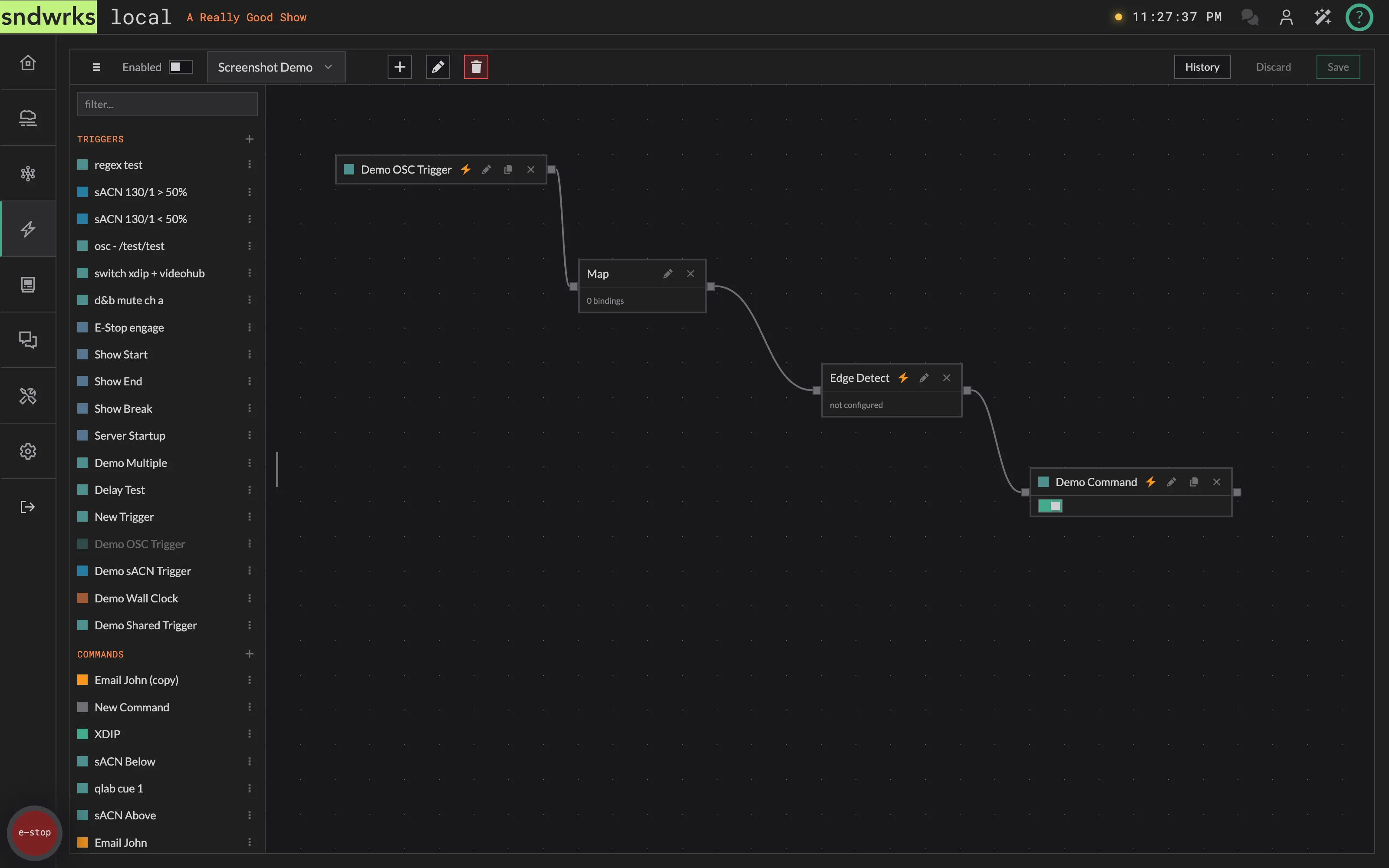
Section titled “Macros”The macros page consists of 3 major sections: the macro controls (top), the nodes (side), the canvas (middle).
Macro Controls Section
Section titled “Macro Controls Section”The controls allow for creation, deletion, editing, enabling, and selecting macros. The macros also store version history, so you can reset to an old state if you’d like.
Nodes Section
Section titled “Nodes Section”The nodes section contains all the possible nodes that can be dropped into the canvas.
You can use the filter box to find something quickly, and the section can be resized.
Canvas Section
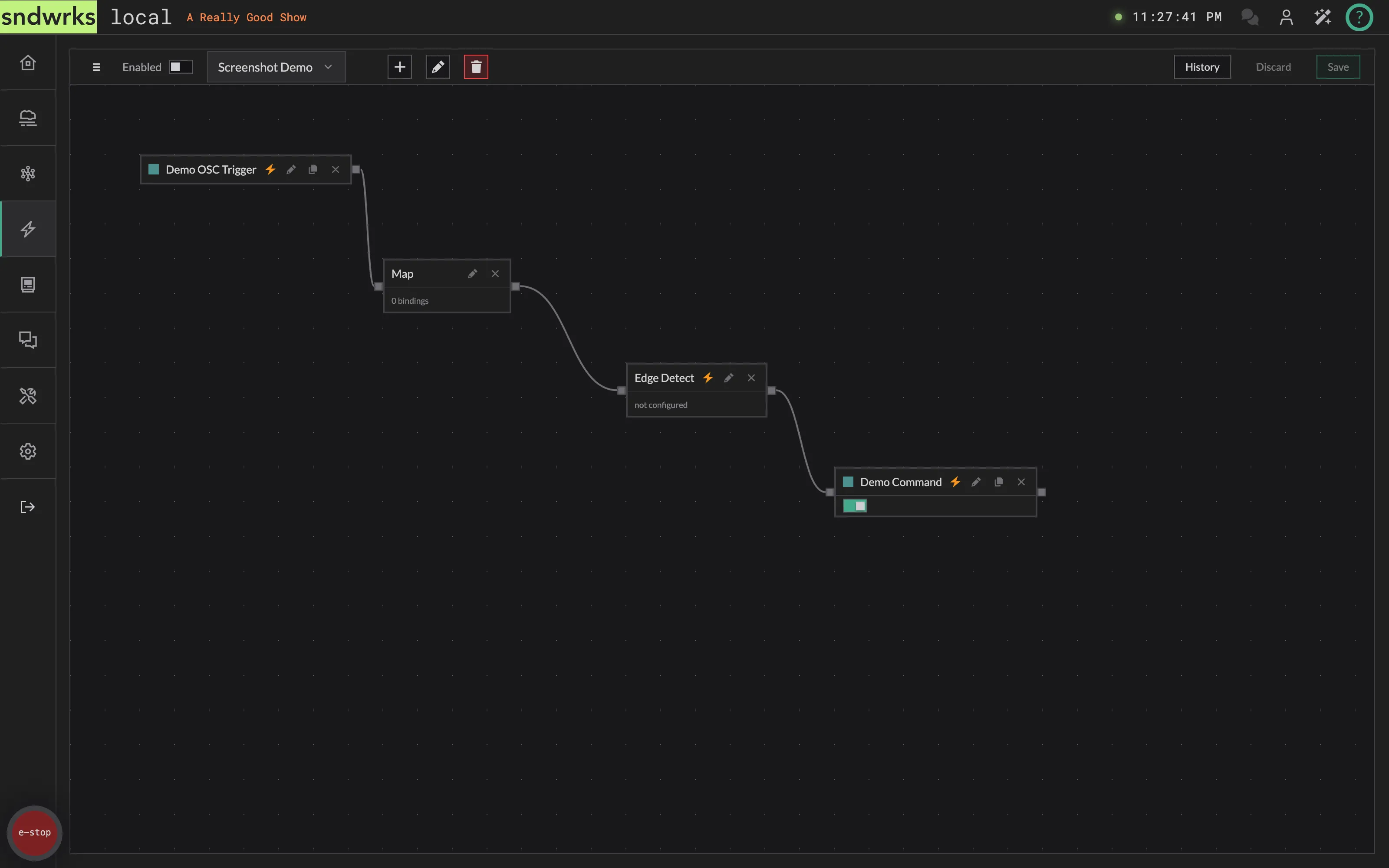
Section titled “Canvas Section”The canvas section holds the selected macros nodes. It allows for visual editing of the function of the macro. It is drag and drop for the most part.
Triggers
Section titled “Triggers”Triggers initiate the macro. Multiple triggers can be added to a macro, and triggers can be reused.
Click the + in the sidebar by Triggers to add one. There are three dots to access various actions you can do to a trigger after you’ve created it.
Disabling a trigger will stop it from firing any macros. You can also change this value via the OSC API
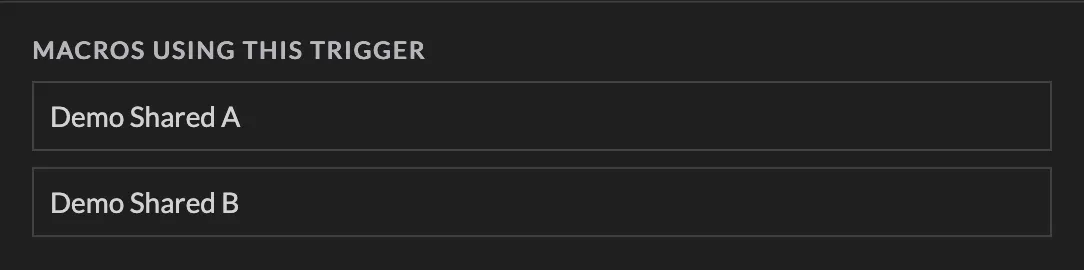
When you are editing a trigger, you can see which macros have the trigger attached to them.
Custom OSC Address
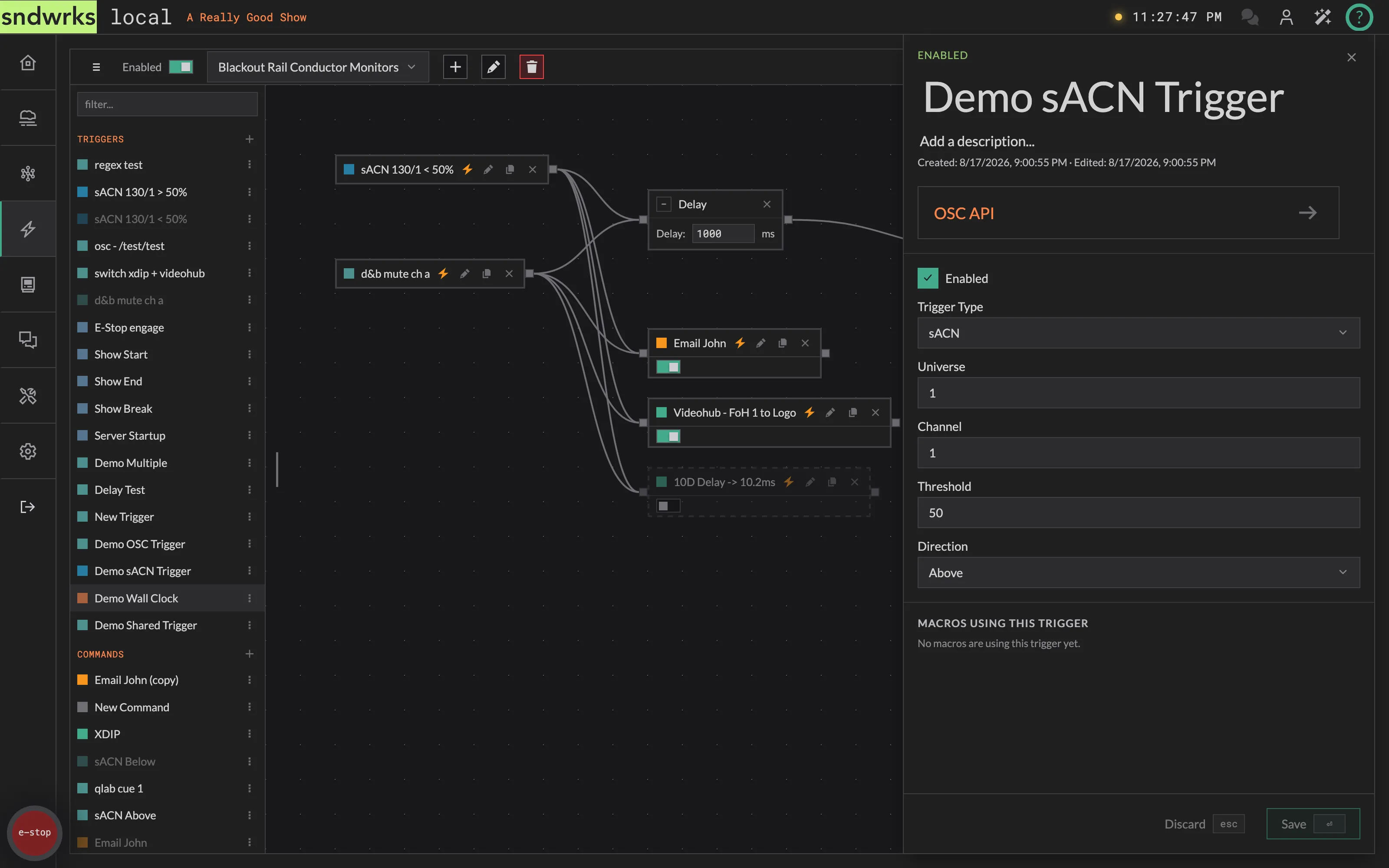
Section titled “Custom OSC Address”The OSC trigger allows for triggering a macro via an OSC Address. Any incoming OSC message that is parseable by the server can fire it.
For example, if you had /my-show/event/start, any device could send that to the server and trigger the macros with this trigger attached.
Use the Match Type to decide how the incoming address is compared:
- Exact — the address must match exactly, e.g.
/my/custom/address. - Glob — wildcard matching with
* ? [] {}, e.g./input/*/mutecatches any input’s mute. - Regex — full regular expressions for the fancy stuff, e.g.
/processing/input/\d/mute. An AI chat should be able to help you generate the proper regex if you need more complex behavior.
Addresses can’t start with /sndwrks/server — that’s reserved for the server itself. In regex mode the pattern also has to be valid, and the field will flag it if it isn’t.
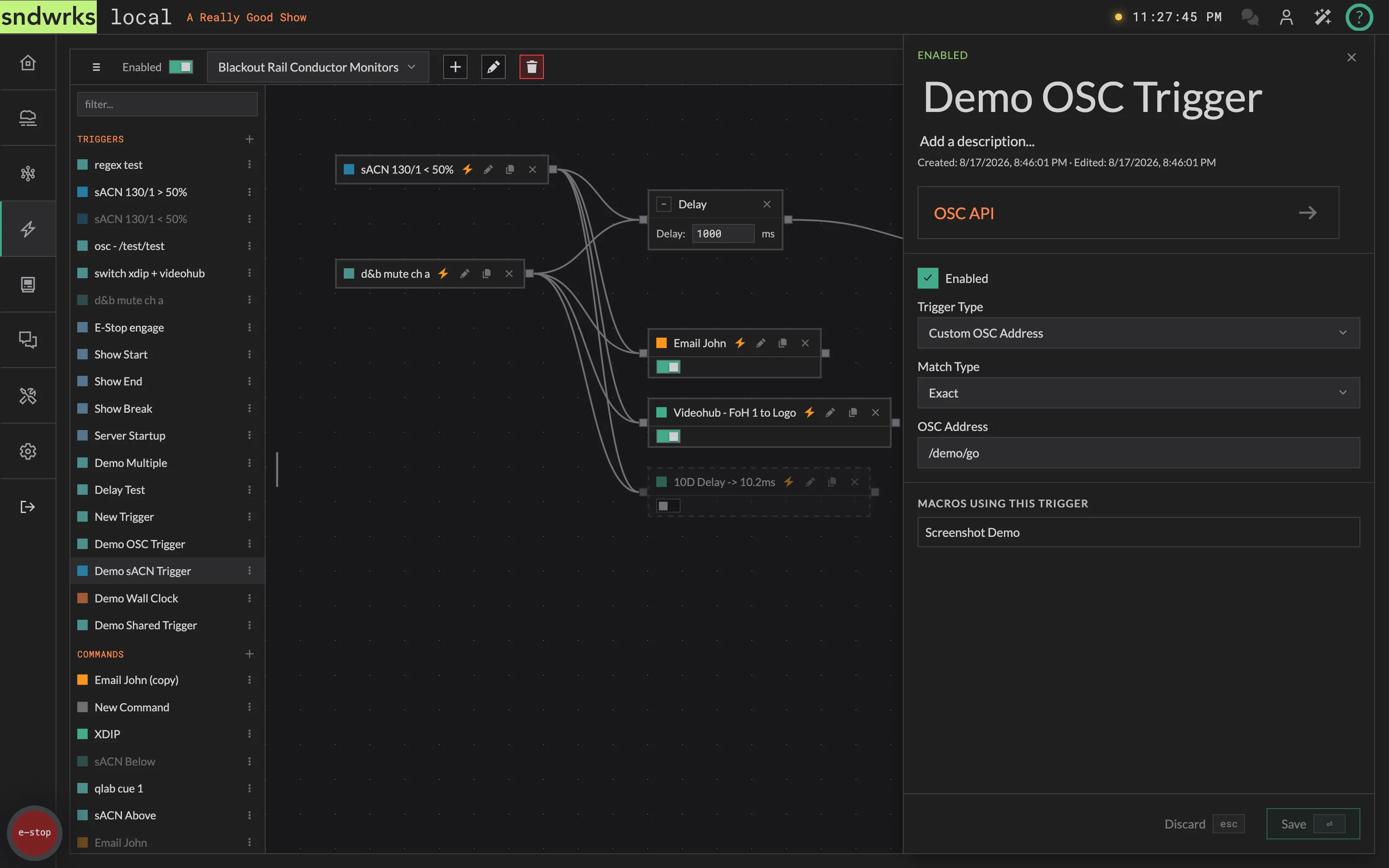
The sACN trigger allows for triggering a macro via sACN values. You can also have an sACN input too.
The trigger behavior is more complex. The sACN trigger is fired on value crossing not level detection, so you may need to pick up this macro (i.e. toggle the value from below to above).
On server start or sACN restart, the sACN engine checks values and the next sACN value received will fire the macro.
The server has flicker protection, so if there’s rapid crossing of the value back and forth the server will slowly increase the time between responding to this trigger. Eventually, if the channel keeps flickering, the server will disable this trigger until there’s 5 seconds of stability.
Server Event
Section titled “Server Event”This trigger allows macros to be fired upon an internal server event.
For example, you could have a macro that sends an email when the server turns on.
Wall Clock
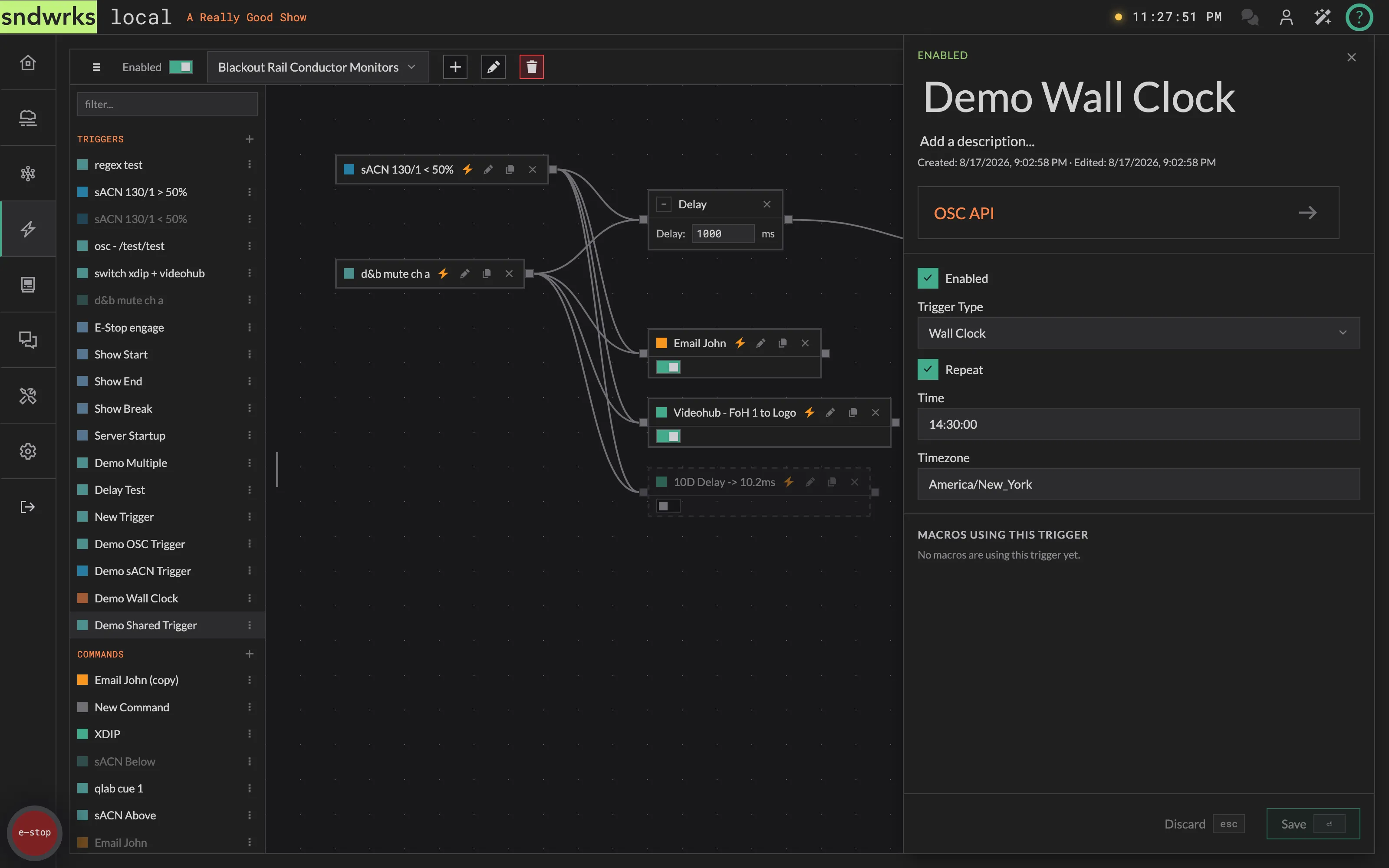
Section titled “Wall Clock”This trigger allows for firing a macro based on a time. The trigger can either be set to fire once or repeat every day on that time.
The time is derived from the server time, which is viewable in the top right corner.
Commands
Section titled “Commands”Commands execute actions in a macro.
Commands can run in parallel or sequentially. If you have a bunch of commands all connected to the trigger, they execute in parallel, but if you chain commands they execute sequentially. Sequential commands will not fire if the command previous to it fails.
The test button will fire a single command for easy validation of the parameters.
Commands can be enabled or disabled via the OSC API. Disabled commands are globally disabled for all macros.
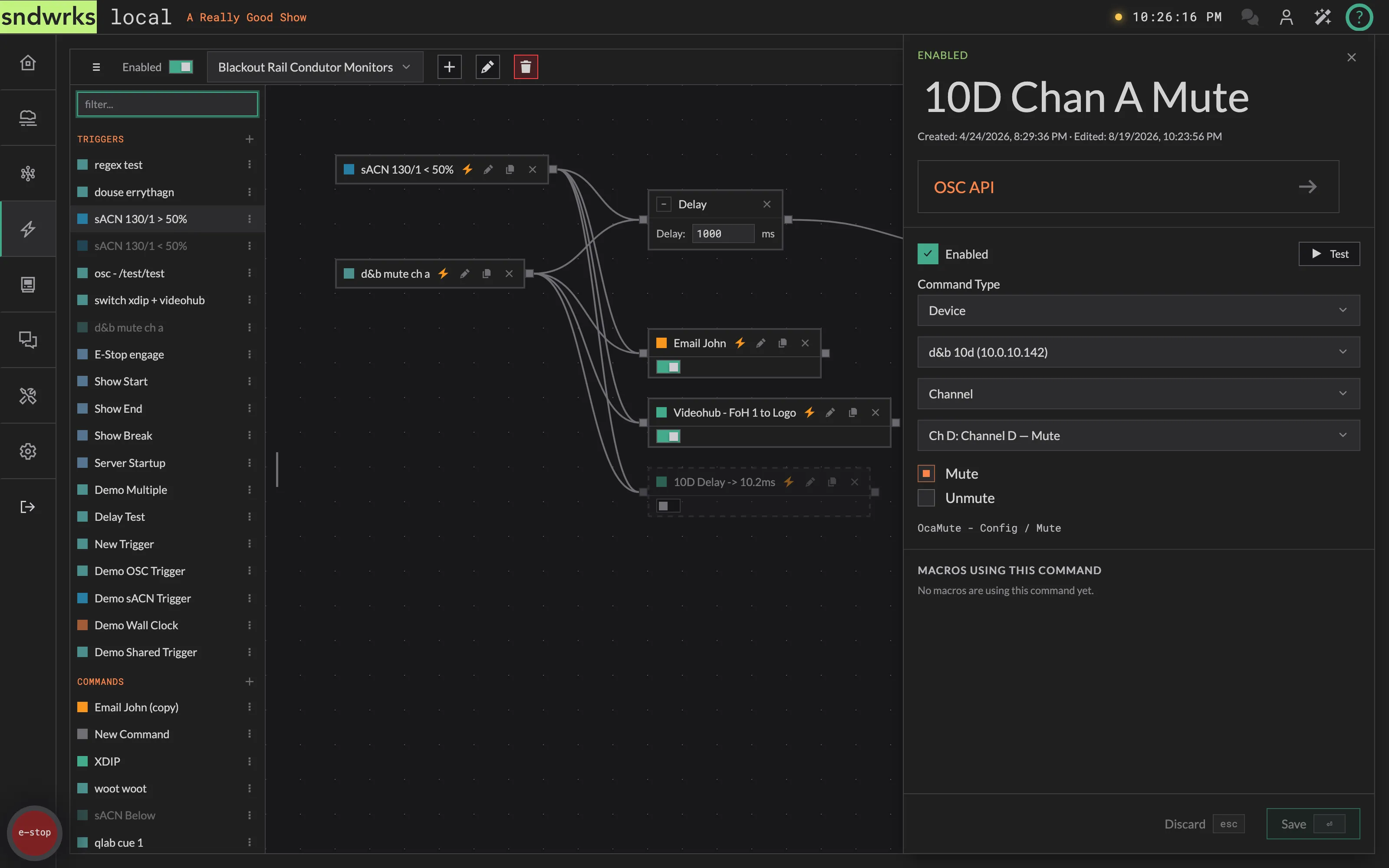
Device
Section titled “Device”Device commands are specific device integrations: blackmagic videohub, l’acoustics la4x, etc. They allow for querying of values from the client device. This is helpful when you want to say see what devices have inputs and outputs labeled as, or see what controls a device has exposed in the case of the OCA integration.
Devices will show up in the command dropdown that have been specified in the Devices page. The options will dynamically change based on the device type selected.
Each integration gets its own tailored editor:
- AES70/OCA — browse the device’s object tree, pick a control, and set a value. Values are bounds-checked against the min/max the device reports.
- Blackmagic ATEM — a visual SuperSource editor. Drag four boxes around a canvas and the command fires that layout at the switcher. See ATEM SuperSource.
- Adderlink xDIP, d&b audiotechnik, L’Acoustics LA4X, Blackmagic Videohub — purpose-built forms for each device’s controls. We deliberately limit the functions that are exposed. If you don’t see something you need, let us know!
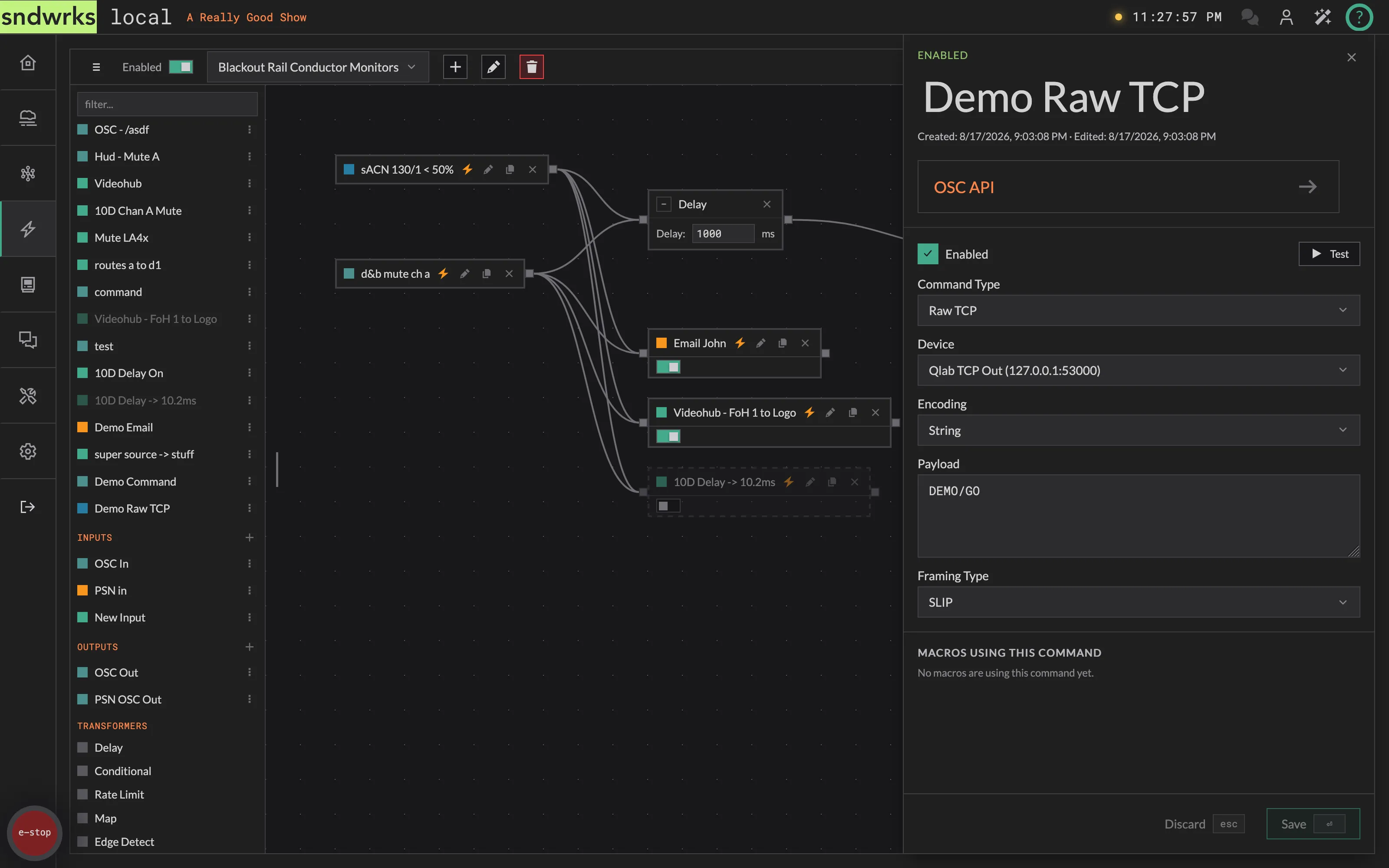
Raw TCP
Section titled “Raw TCP”Raw TCP commands send tcp messages using a specified encoding and framing. Select a device you’d like to send the TCP message to and enter the desired parameters.
This command type is very helpful for devices that we haven’t yet added integrations for, or for doing more extensive control with devices that don’t expose OSC or HTTP APIs.
Raw UDP
Section titled “Raw UDP”Raw UDP commands send udp messages using a specified encoding.
OSC commands send an OSC message using a specified transport (UDP or TCP).
HTTP commands send http messages. There are various parameters available to execute your desired command.
To protect devices from runaway error loops, each HTTP destination is monitored independently. If the same destination (host + port) fails 5 times within 60 seconds, sndwrks disables it for the rest of the session and stops sending requests to it.
When a destination is disabled, you’ll see a notification in the UI and an entry in the
Events panel. Commands targeting that destination will fail immediately with a destination disabled message.
To bring a disabled destination back online, restart the server.
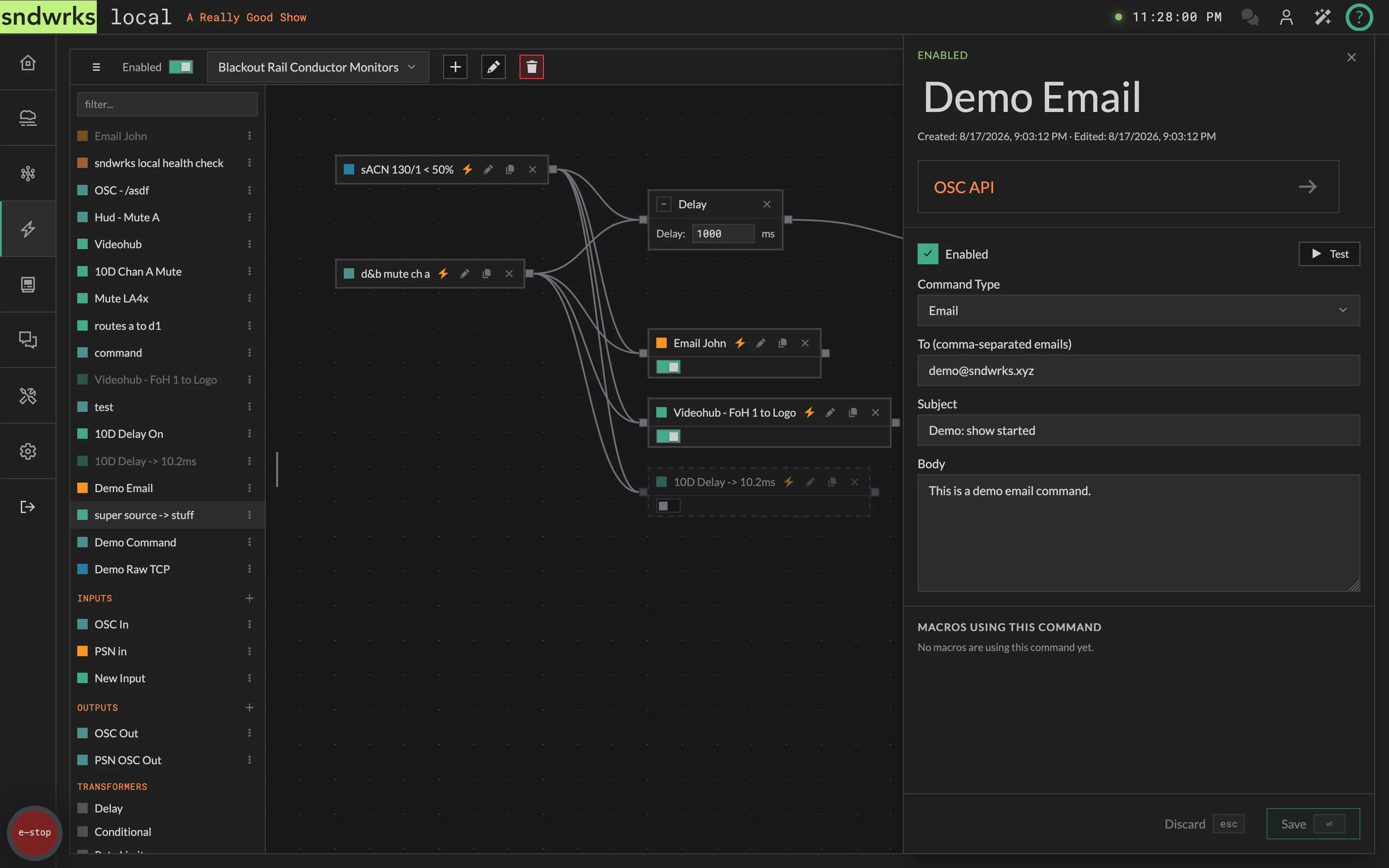
Email commands allow for sending of emails to multiple addresses.
Email commands are protected by several layers to prevent runaway sending and misuse:
- Validation: Recipients must be valid email addresses, and subject and body are required. Invalid commands can’t be saved.
- Rate limiting: Each command is independently rate-limited to 5 sends per minute and 30 sends per hour. When a limit is hit, the send is dropped (not queued), and you’ll see a notification in the UI and an entry in the Events panel.
- Locked sender identity: All emails are sent from info@sndwrks.xyz with the sndwrks notification branding. You control the recipients, subject and body — but not the “From” address. This keeps deliverability high and prevents impersonation.
Rate limits are per command, not per recipient or destination.
System
Section titled “System”System commands fire system actions with one currently enabled.
Emergency Stop
Engages the E-Stop.
Inputs
Section titled “Inputs”Inputs put live device data on the canvas.
Where a trigger is an event, an input is a value that streams through the macro. The server holds each input’s most recent value, so a command downstream can pull it whenever it runs, rather than only seeing what arrived with the trigger.
New data on an input also pushes through the nodes below it, and Edge Detect watches an input to fire when its value crosses a line.
Each input gets a name, an Input Type, and optionally a Device to bind it to. The types are OSC, Raw TCP, Raw UDP, sACN, and PSN.
An OSC input is the involved one. It holds a list of addresses, and each address gets:
- Name (key) — what downstream nodes call this value. Letters, numbers and underscores only.
- Match —
Exact,Glob, orRegex, the same matching described under Custom OSC Address. - Address — the OSC address to read, e.g.
/input/*/mute. - Args — any number of named, typed arguments pulled out of the message.
Outputs
Section titled “Outputs”An output outputs whatever it receives. It’s the other half of an input.
The types are OSC, Raw TCP, Raw UDP, and PSN.
An output carries its own configured data as the base, and the upstream payload overrides any field it also sets. That means you can put the parts that never change on the output itself and let the macro supply only what varies.
Outputs bound to a device integration go out the same path a Device command does.
Transformers
Section titled “Transformers”Transformers modify the macro execution.
For example, you could have a macro but you want a command to be delayed relative to the trigger firing. This is where transformers come in.
Transformers get dropped on the canvas between the trigger node and command nodes, or between command nodes.
The Delay transformer takes in a delay value in milliseconds. It delays the execution of that section of the canvas for that value.
Rate Limit
Section titled “Rate Limit”The Rate Limit transformer limits the execution of subsequent nodes per second.
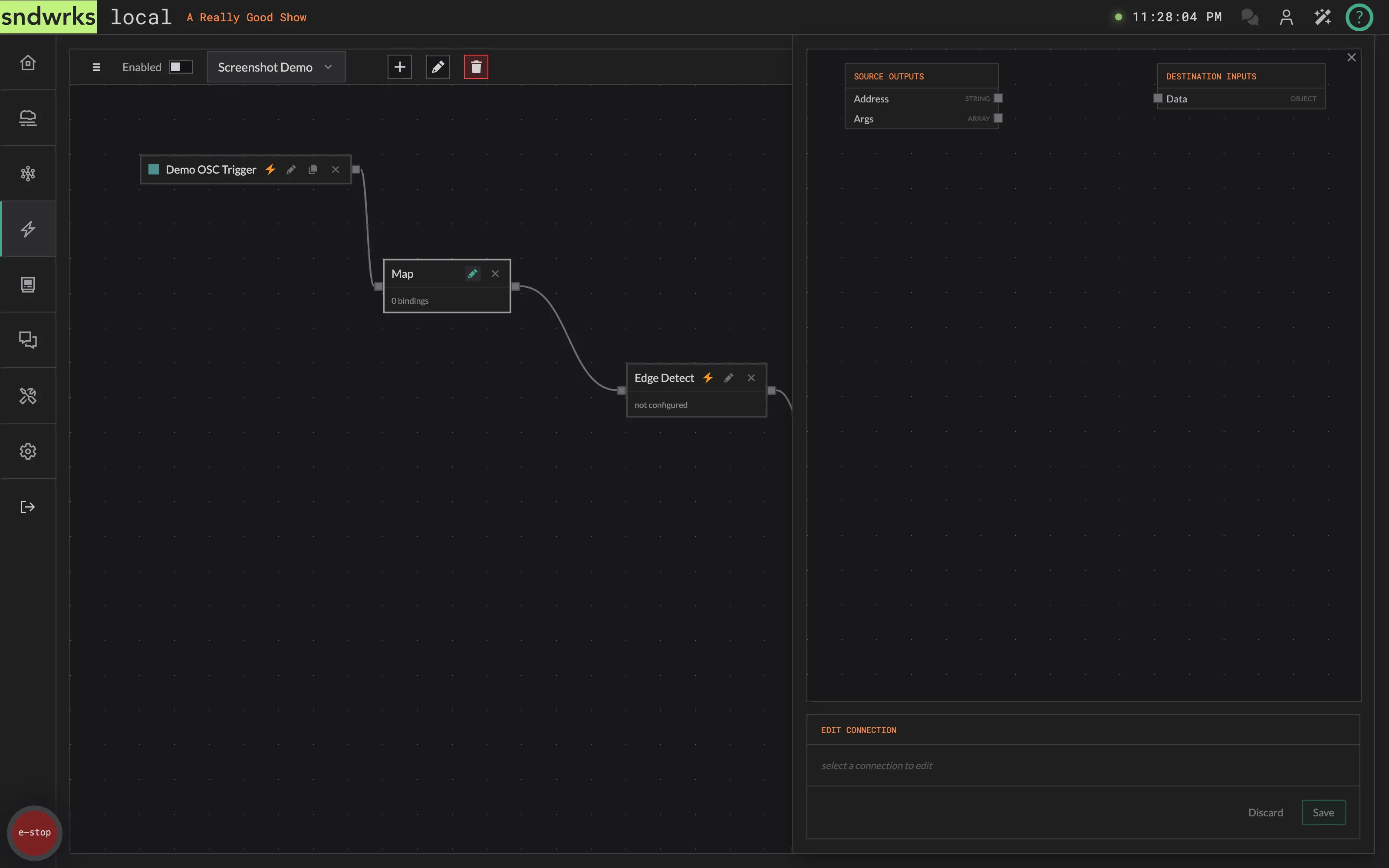
The Map transformer reshapes the data flowing through the macro. It gives you a drag-and-drop canvas where you wire the fields coming in from upstream to the fields the downstream nodes expect, and you can shape values along the way with a curve.
This is handy when a trigger gives you one set of values but a command wants them in a different shape or range.
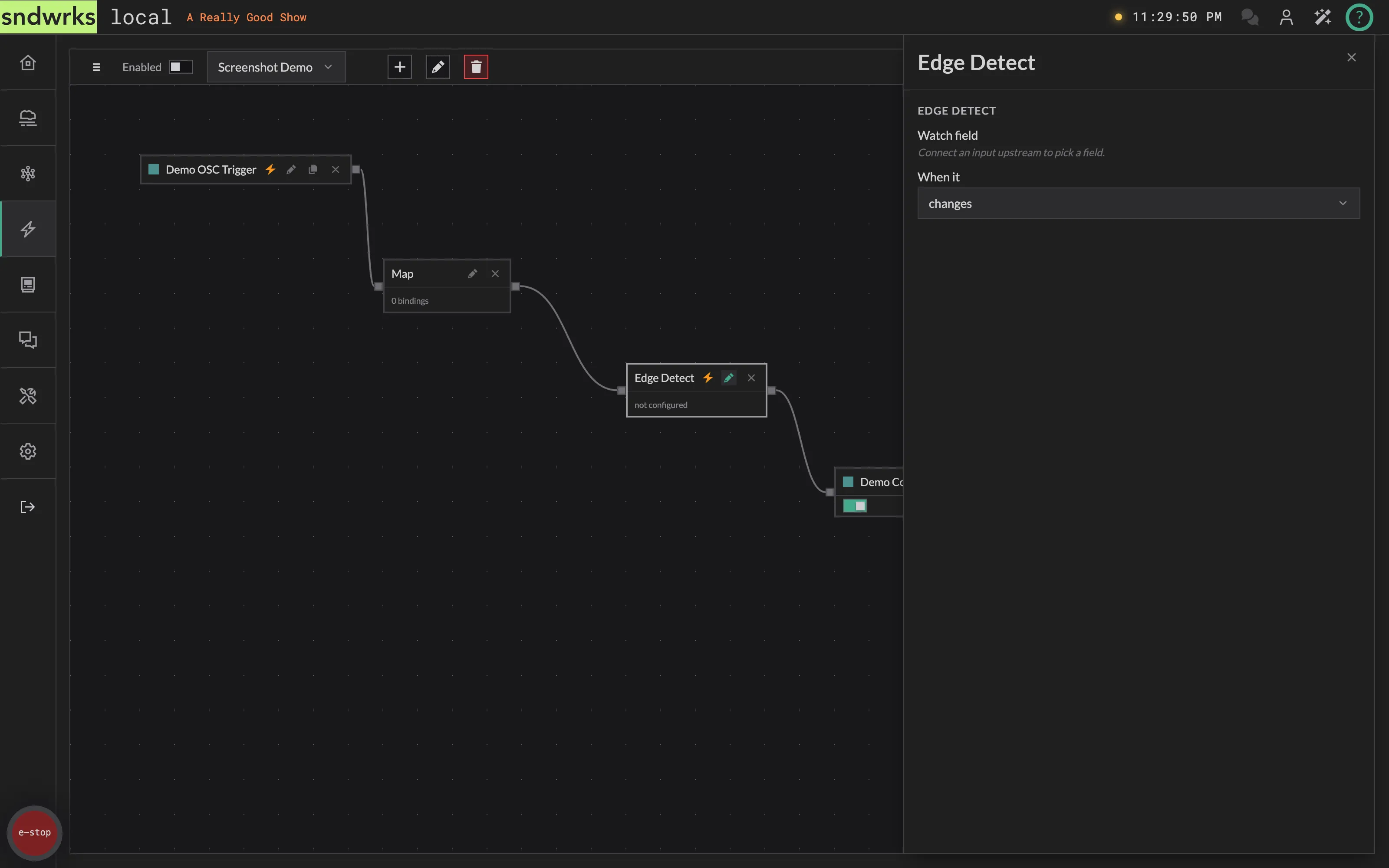
Edge Detect
Section titled “Edge Detect”The Edge Detect transformer watches an upstream field and fires when it crosses a line, not just while it sits past it. Pick the field and a condition: changes, rises above, or falls below a value.
Like the Map transformer, it opens a full-panel editor to pick the field and set the threshold.