Settings
The settings page is well, ya know, settings. There’s various options and actions to manage the server.
Global
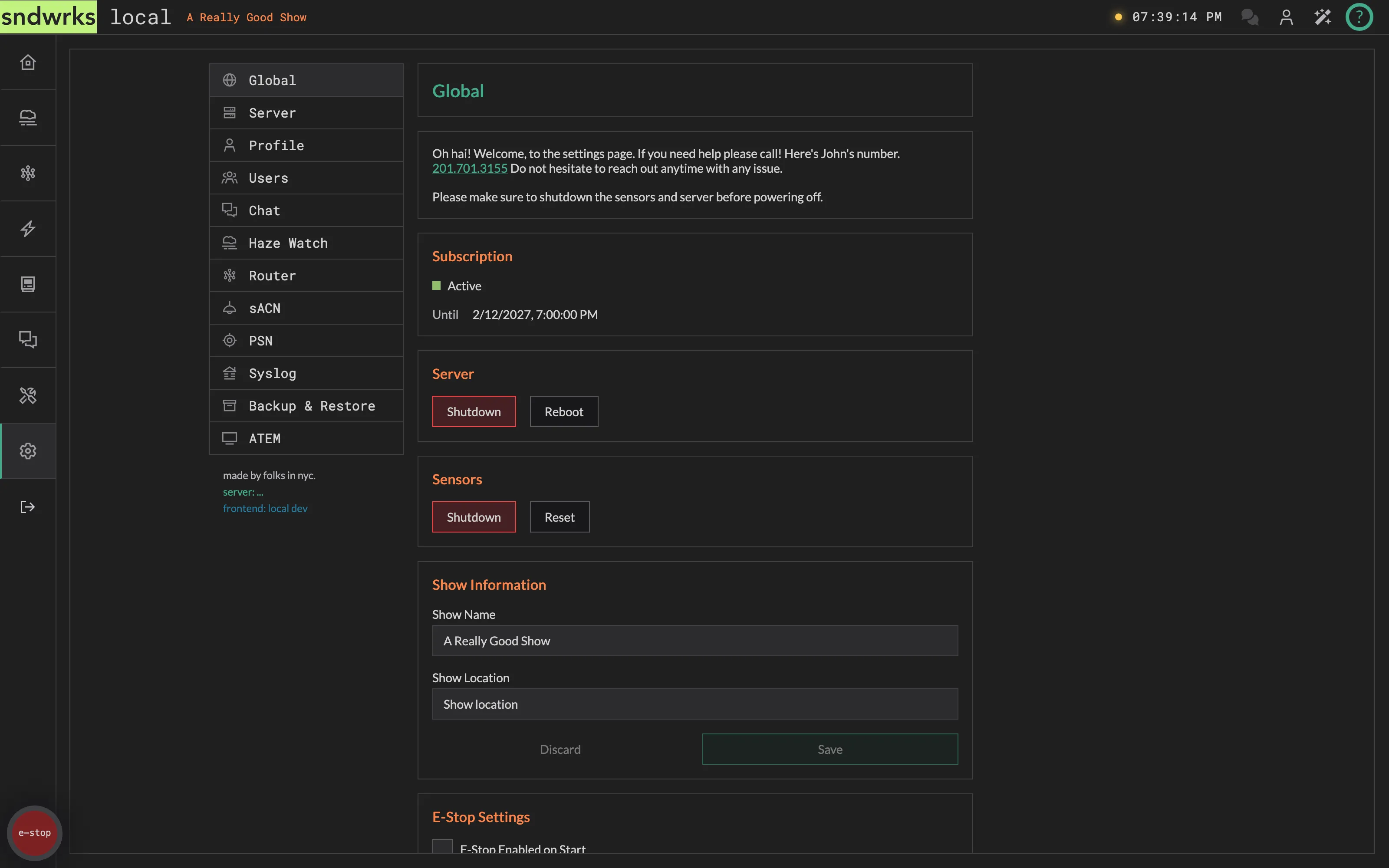
Section titled “Global”These are show settings and actions.
Power/Reset Buttons
Section titled “Power/Reset Buttons”Two cards, each with two buttons.
Server
- Shutdown — clean shutdown of the server process.
- Reboot — restart the host.
Sensors
- Shutdown — power down haze watch sensors.
- Reset — soft restart of the sensors.
Show Information
Section titled “Show Information”Enter the name of your show and it’s location.
E-Stop Settings
Section titled “E-Stop Settings”This checkbox enables E-Stop on server startup. You may want this if you’re doing haze control so that the server doesn’t try and turn stuff on before you’re ready.
For what the e-stop actually stops and who’s allowed to press it, see E-Stop.
Subscription
Section titled “Subscription”A status light, a label, and the date your server is covered until. See Cloud for what each state means.
Double Message protection
Section titled “Double Message protection”This drops duplicate OSC messages that are received by the server in a specific timeframe.
Time Format
Section titled “Time Format”Select 24h or 12h as you wish.
IP Blocklist
Section titled “IP Blocklist”Sometimes you may not want a device to connect to the server at all. The IP Blocklist drops show control traffic from the addresses you list: network server messages (TCP/UDP), the OSC API, macro triggers, syslog, sACN, and PSN.
Add single IPv4 addresses or whole ranges in CIDR notation like 10.40.20.0/24. Entries are validated as you type.
Server
Section titled “Server”Settings related to the server hardware itself specifically network settings.
Network Settings
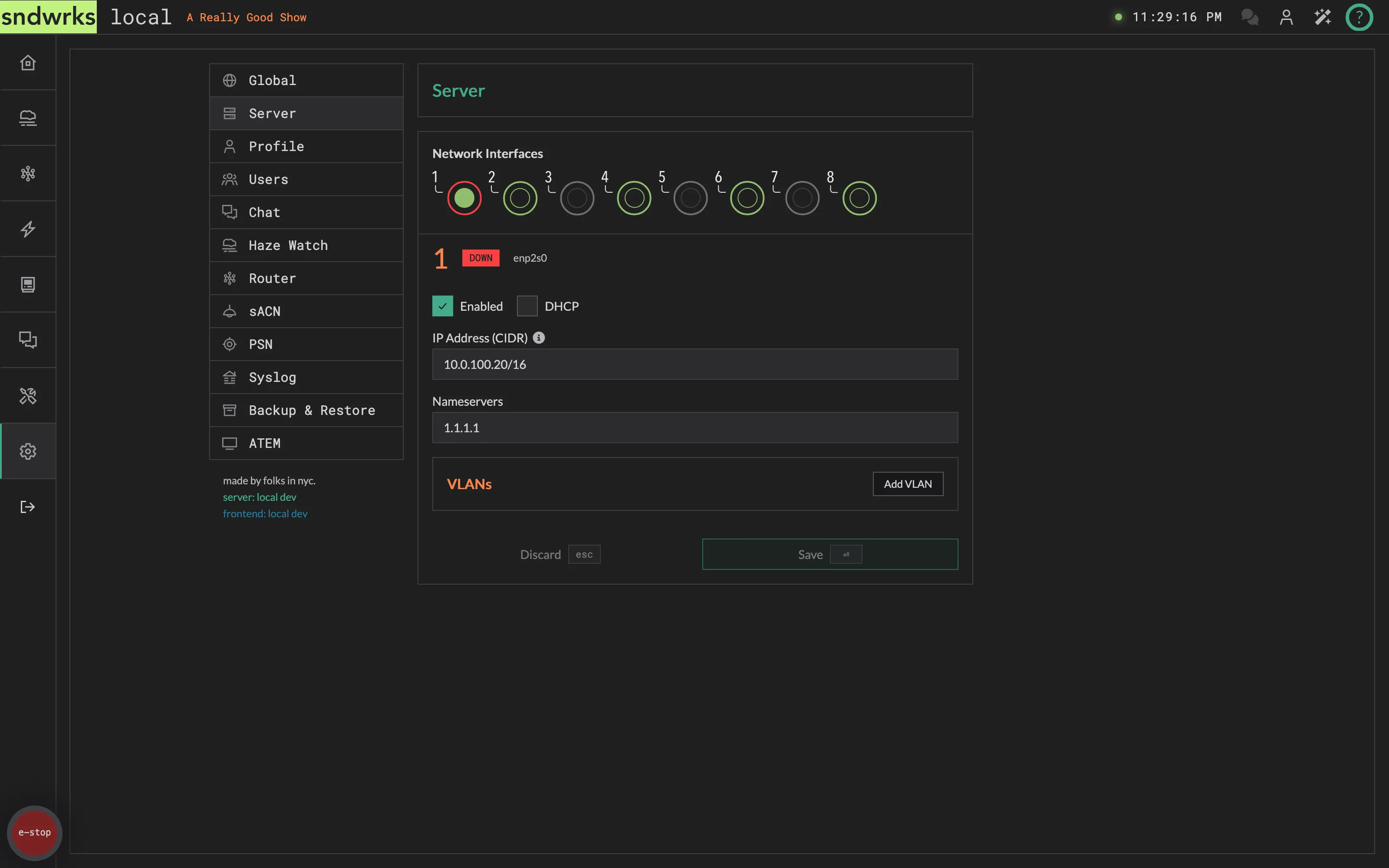
Section titled “Network Settings”Here is where you set the network information for the server. You can add VLANs, setup DHCP as desired.
The IP addresses with subnets should be entered in as xxx.xxx.xxx.xxx/xx a.k.a. CIDR notation. An example is 10.40.20.8/24 which translates to 10.40.20.8 - 255.255.255.0.
Select the interface you want to change and then adust the settings and click save!
Profile
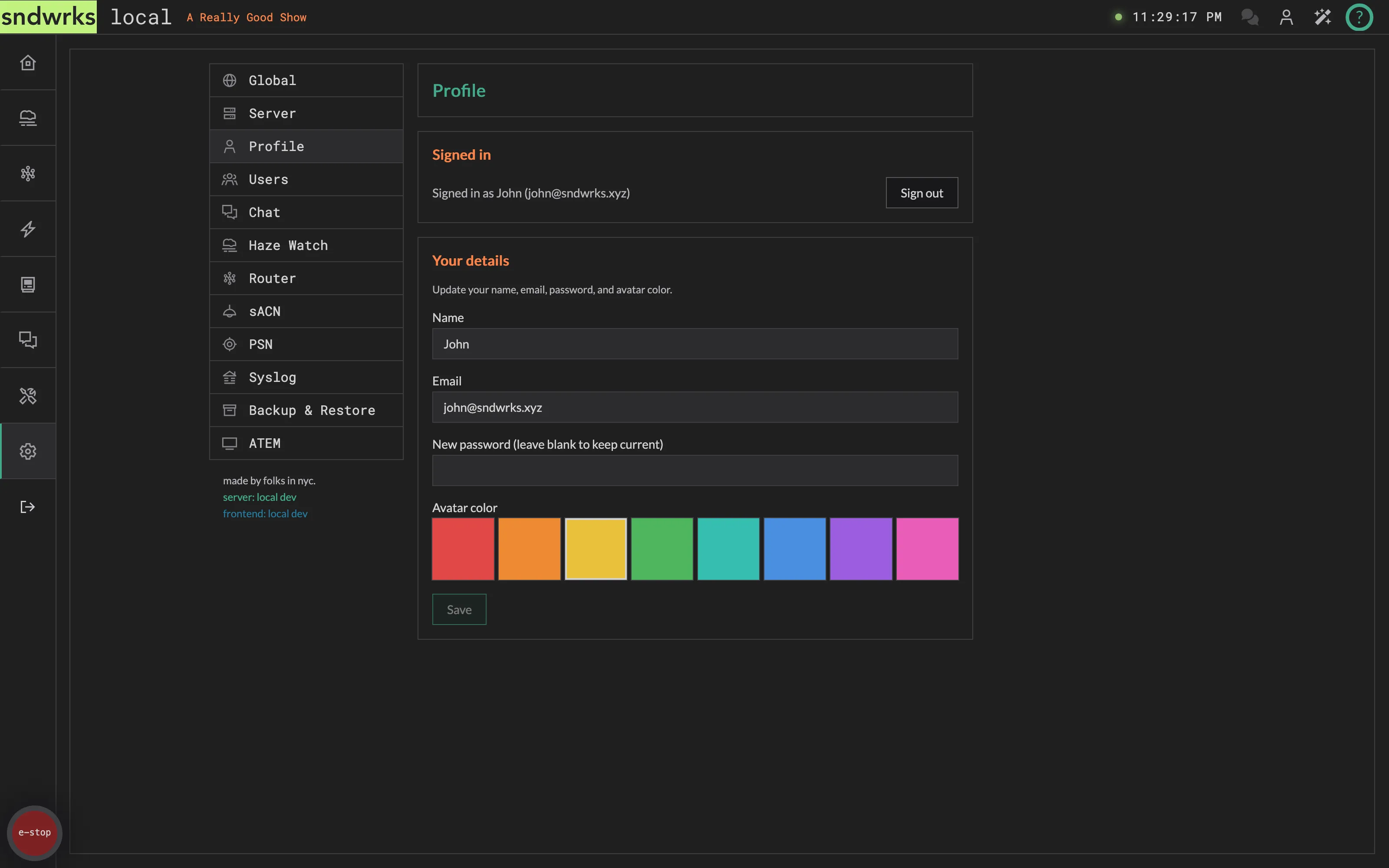
Section titled “Profile”Your own account: name, email, password, avatar color, and a sign-out button. See Users & Permissions for the full story.
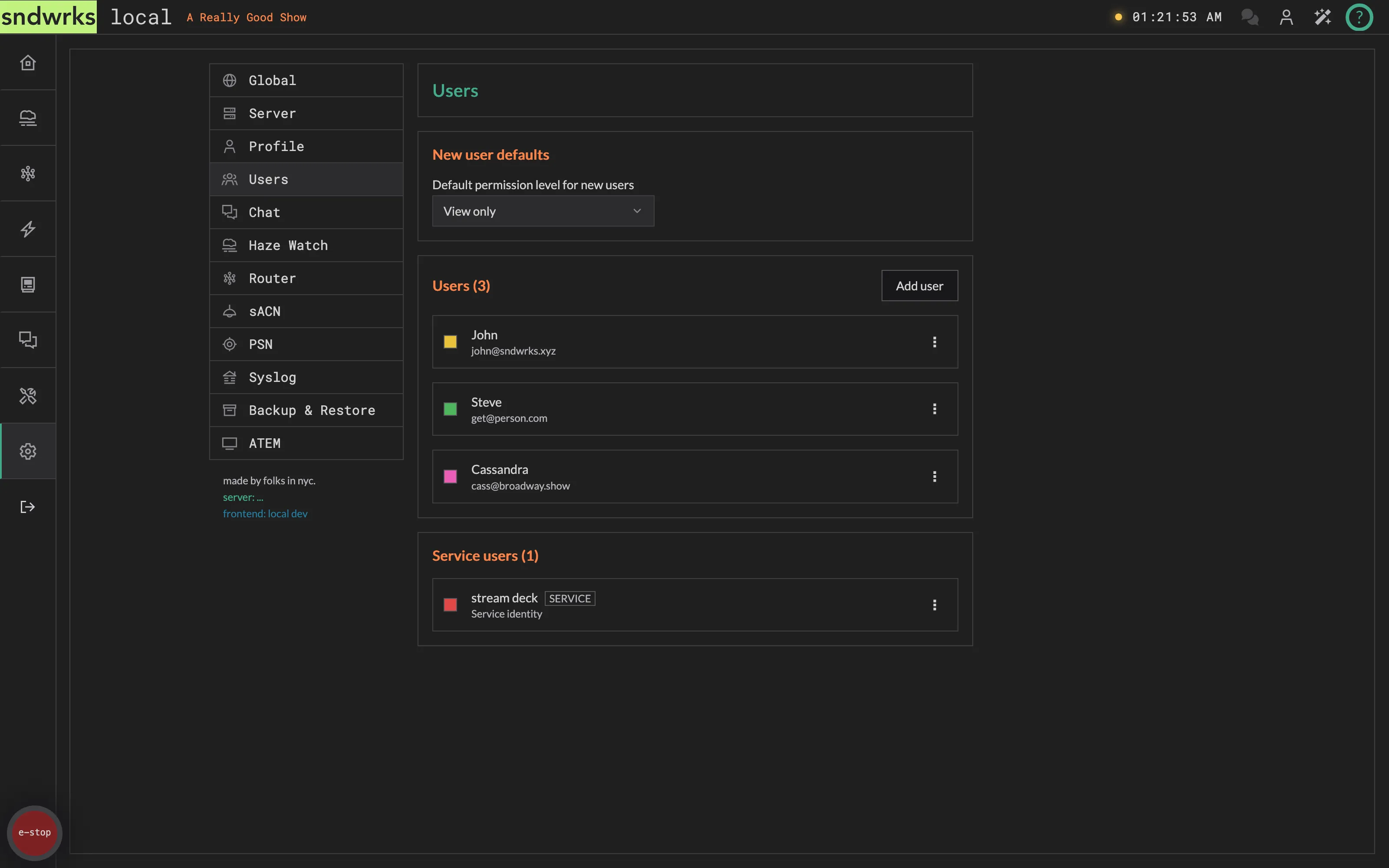
Add teammates, set their permissions, and choose what new accounts start with.
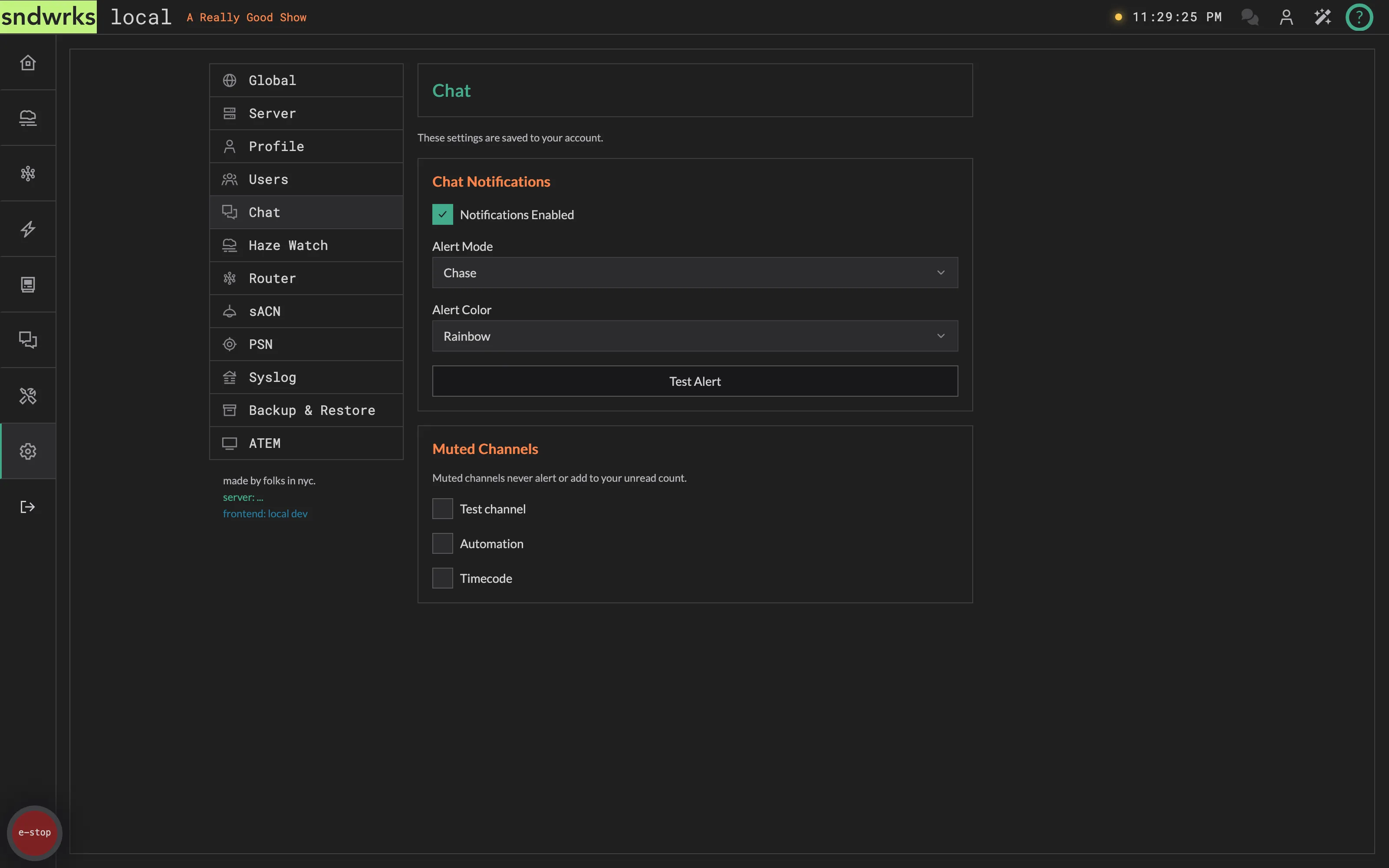
These are the settings for chat.
Chat Notifications
Section titled “Chat Notifications”These are various notifications settings for what happens when you receive a message. We really like the rainbow one so that’s the default. These preferences are saved to your account, so they follow you from browser to browser.
Haze Watch
Section titled “Haze Watch”There’s no settings here!
We’ll probably add some stuff here eventually, and wanted to keep the placeholder.
Router
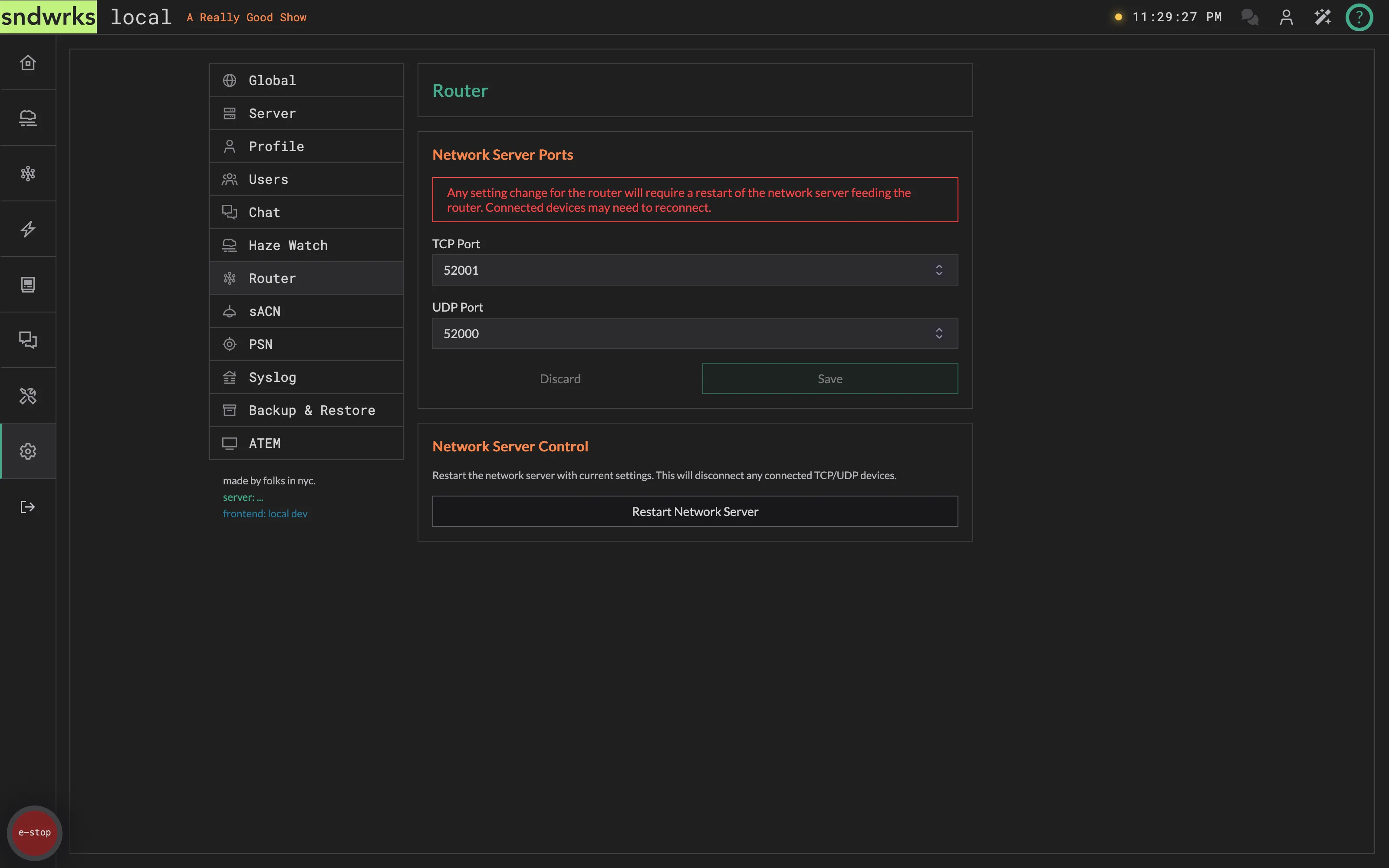
Section titled “Router”The main settings here allow for port control and resetting of network server itself.
Network Server ports
Section titled “Network Server ports”You can adjust the ports the server listens on to your heart’s content.
The network server portion of the server will restart after the change. You’ll need to change the ports your devices use to connect to the server.
We reserve a few ports for sndwrks internal use, and we won’t let you set one that we need.
Network Server Control
Section titled “Network Server Control”This allows you to just restart the network server. It may be helpful to have your devices reconnect, or just, ya know, turn it off and on again.
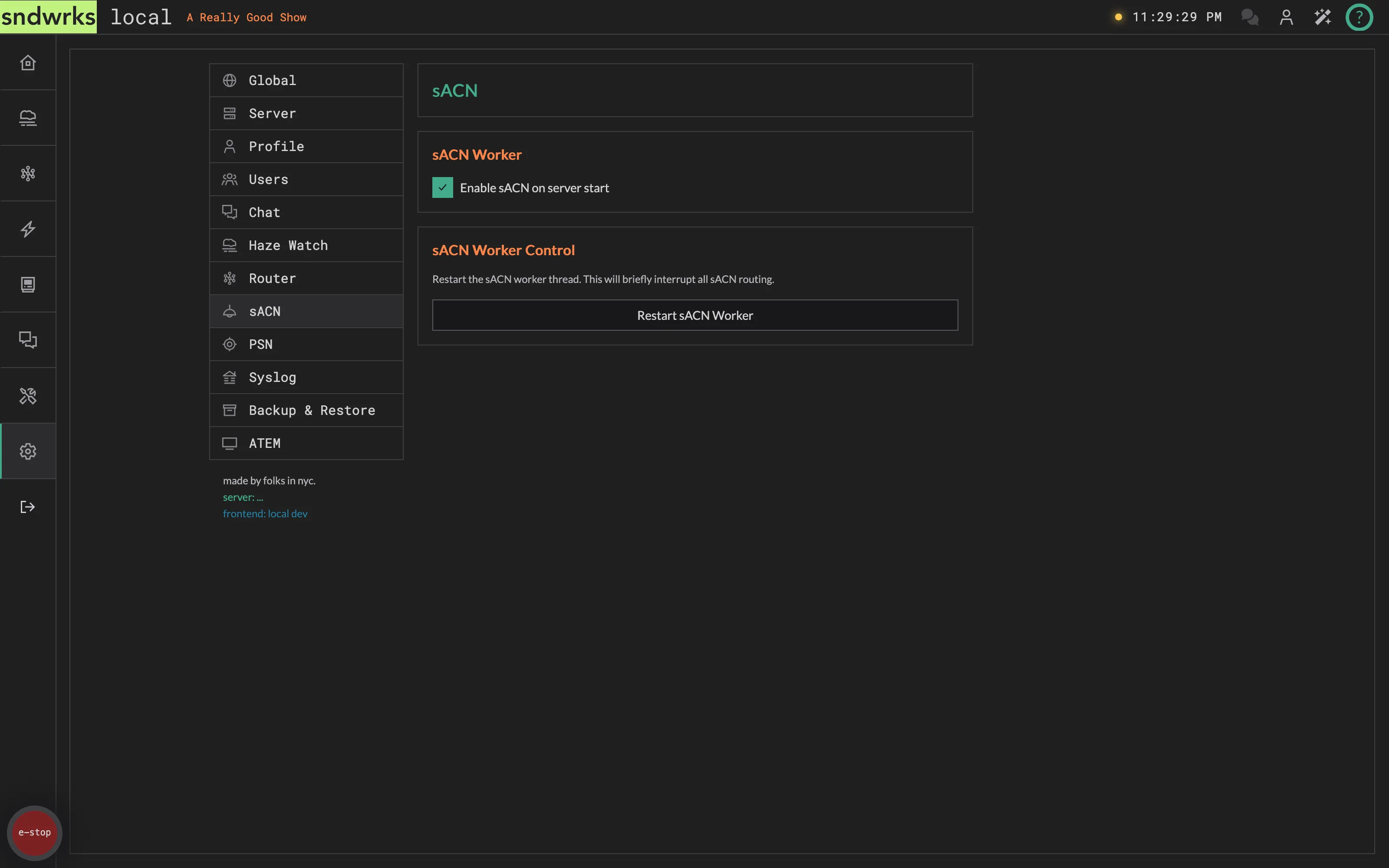
These are the various settings related to sACN.
sACN Worker
Section titled “sACN Worker”The server has a separate module to handle sACN. You can turn this off if you don’t need sACN on your show.
sACN Worker Control
Section titled “sACN Worker Control”Similar to the router network server, you can reset the sACN worker. This may be helpful for various reasons just know that if you hit that button, it’s going to interrupt the sACN functionality of the server.
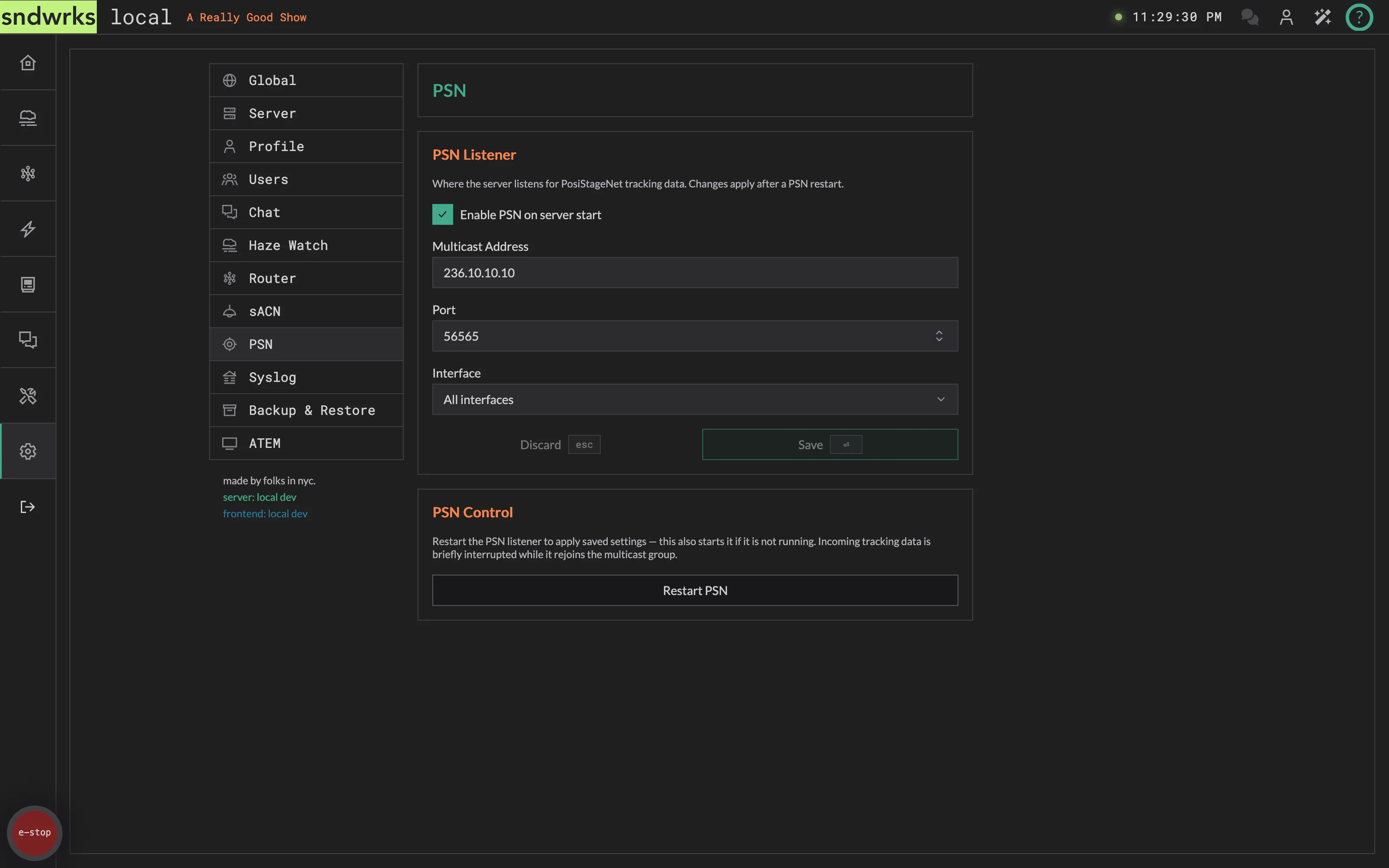
Settings for PosiStageNet tracking data.
PSN Listener
Section titled “PSN Listener”Where the server goes looking for PSN:
- Multicast Address — the group the tracking system is sending to.
- Port — the UDP port to listen on.
- Interface — which NIC to listen on. Only interfaces that actually exist on your hardware are offered, so a smol server shows its two ports rather than a full server’s eight.
PSN Control
Section titled “PSN Control”Same deal as the sACN and syslog workers: you can stop and restart the PSN listener without touching the rest of the server.
Syslog
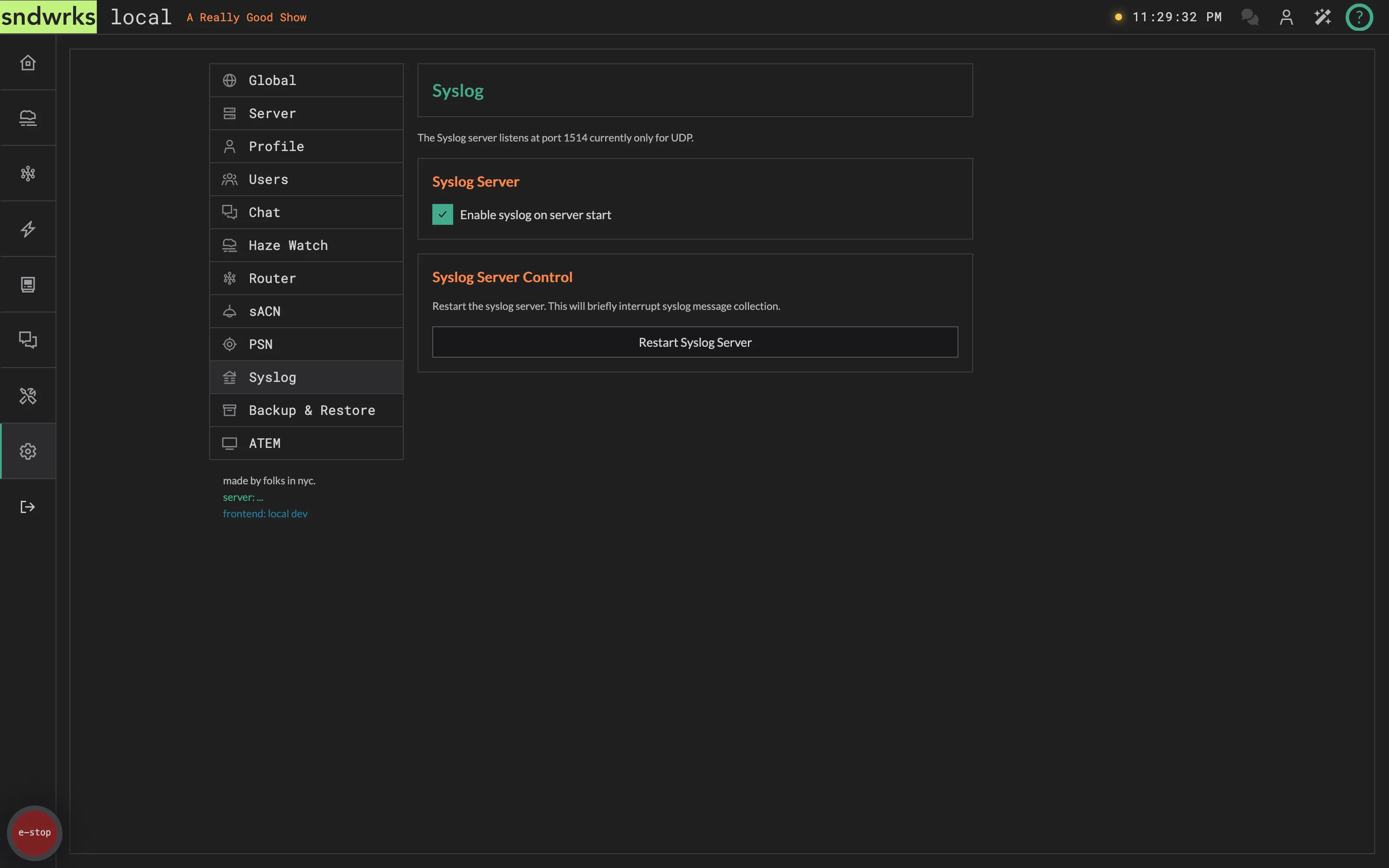
Section titled “Syslog”Here lies the syslog configuration. The syslog server listens on port 1514 for UDP syslog messages.
Syslog Server
Section titled “Syslog Server”Like sACN, you can turn off syslog from running if you don’t need it.
Syslog Server Control
Section titled “Syslog Server Control”This allows you to restart the syslog server. The ‘ol turn it off and on again.
Backup & Restore
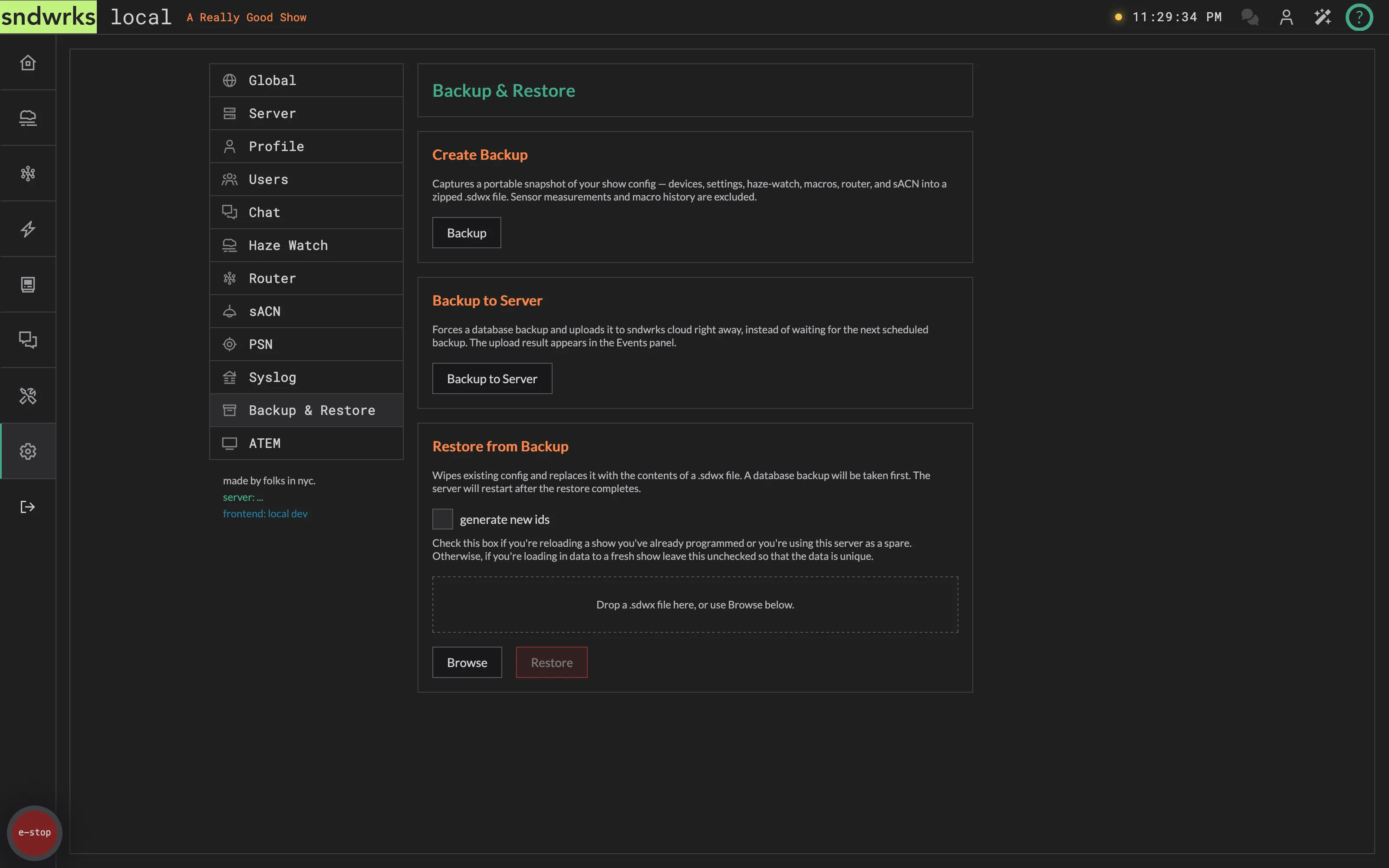
Section titled “Backup & Restore”We figure you may want to save your work, or load a previous state.
The server also automatically creates more comprehensive database backups and uploads them to our servers, but this way you don’t have to call us to load another show.
Create a Backup
Section titled “Create a Backup”This takes your show config and zips it into a nice .sdwx file. What goes in:
- Devices
- Settings
- Haze watch triggers and commands
- Router destinations and filters
- sACN listeners, senders, and routes
- PSN listeners, senders, and routes
- Macros — triggers, commands, inputs, outputs, transformers, canvas wiring, overview buttons, and email templates
Everything else stays out. That’s about size — sensor measurements and macro history can number in the millions — and scope: a show file is your show, not your server.
Creating and restoring backups are each permission-gated. The buttons are always visible — they just go dim without the permission, and hovering one names what you need.
Backup to Server
Section titled “Backup to Server”Separate from the .sdwx show file above. This forces a full database backup and uploads it to sndwrks cloud straight away, rather than waiting for the next scheduled one.
The result lands in the Events panel — watch there, not the button. A failed upload doesn’t lose anything; the backup is still on your server and the next scheduled one retries.
Restore from Backup
Section titled “Restore from Backup”This allows you to load a .sdwx file you have into the server. Drag and drop or browse for your file to upload. After you’ve uploaded a file the server will restart to load the information.
There’s one option worth understanding before you hit go: generate new ids, unchecked by default.
- Leave it unchecked to reload a show onto the same server, or to move a programmed show onto a server that will replace the original. Everything keeps the ids it had, so anything pointing at those ids — OSC addresses baked into a console, for instance — still lands.
- Tick it when you’re loading a show onto a server that you want to be fresh. Maybe you have a setup file that you like, but it’s a new show.
If you’re not sure, leave it alone. Unchecked is the normal case.
Settings for Blackmagic ATEM switchers. There’s one thing in here.
SuperSource Mask
Section titled “SuperSource Mask”A PNG or SVG that floats over the SuperSource editor canvas so you can lay out boxes against real scenic geometry — an LED wall bezel, a projection cut-out, an IMAG hard edge. 512 KB max, one mask per server.
It’s a design aid and nothing else. It never reaches the switcher.
Upload, replace, and remove are gated on settings.atem.superSourceMask.edit. See ATEM SuperSource.