Users & Permissions
The server has accounts. Everyone who uses it signs in, and what each person can see and do is up to you.
Logging in each time can be annoying, but we believe this is a very important feature. Your server can be connected to millions of dollars worth of equipment, and it’s important to make sure not just anyone can change things. The permissions tied to user accounts allow you to exercise fine-grained control over who can do what.
We also maintain a sndwrks admin account on each server, so we can always help out when you need it.
Signing in
Section titled “Signing in”When you open the app you’ll meet the sign-in screen before anything else. Enter your email and password and you’re in.
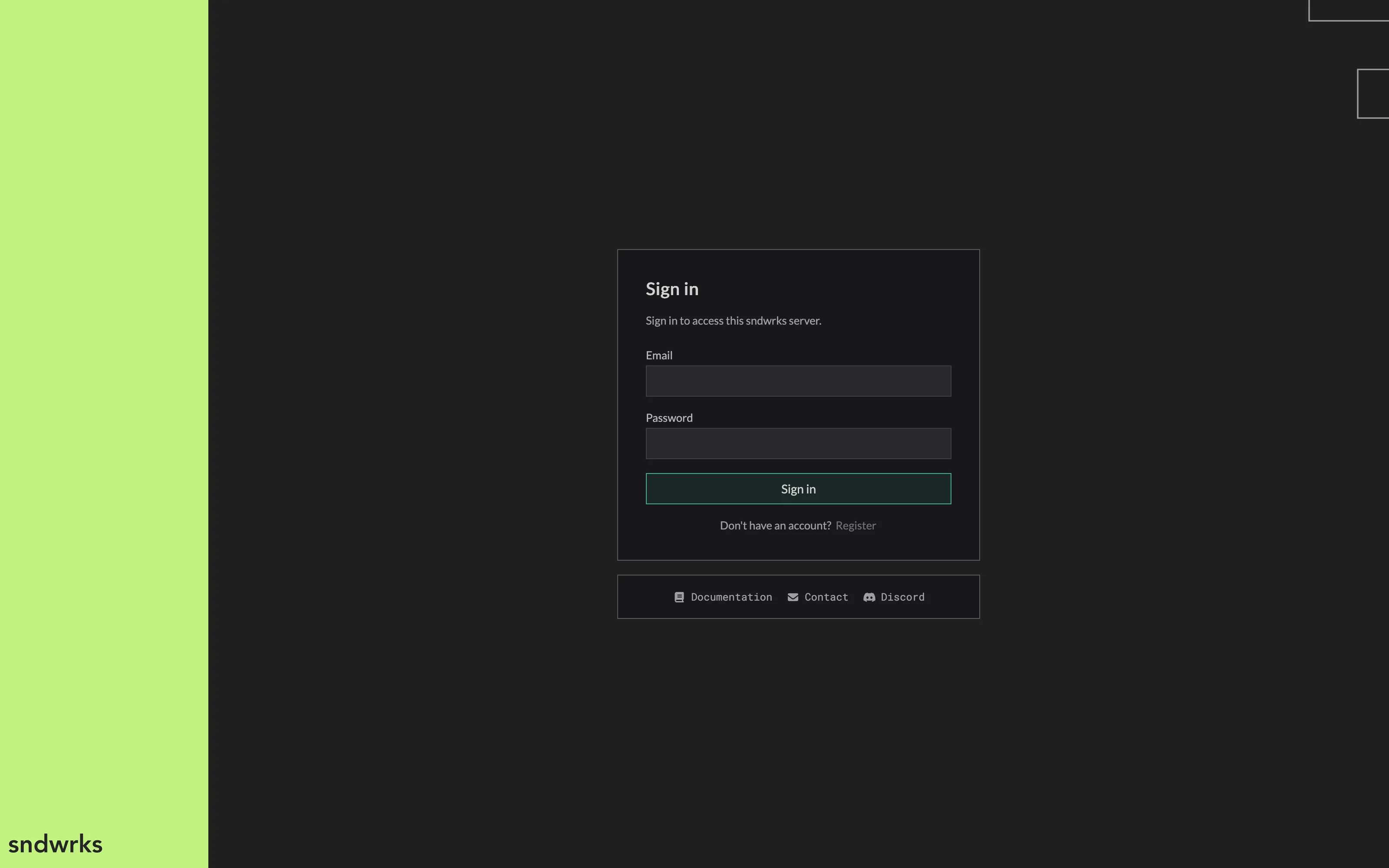
Sessions stick around for about 30 days, so you won’t be typing your password every show. If someone fat-fingers the password too many times in a row, that IP gets a short cooldown before it can try again. Basically the server is saying “easy there tiger” (probably).
Creating an account
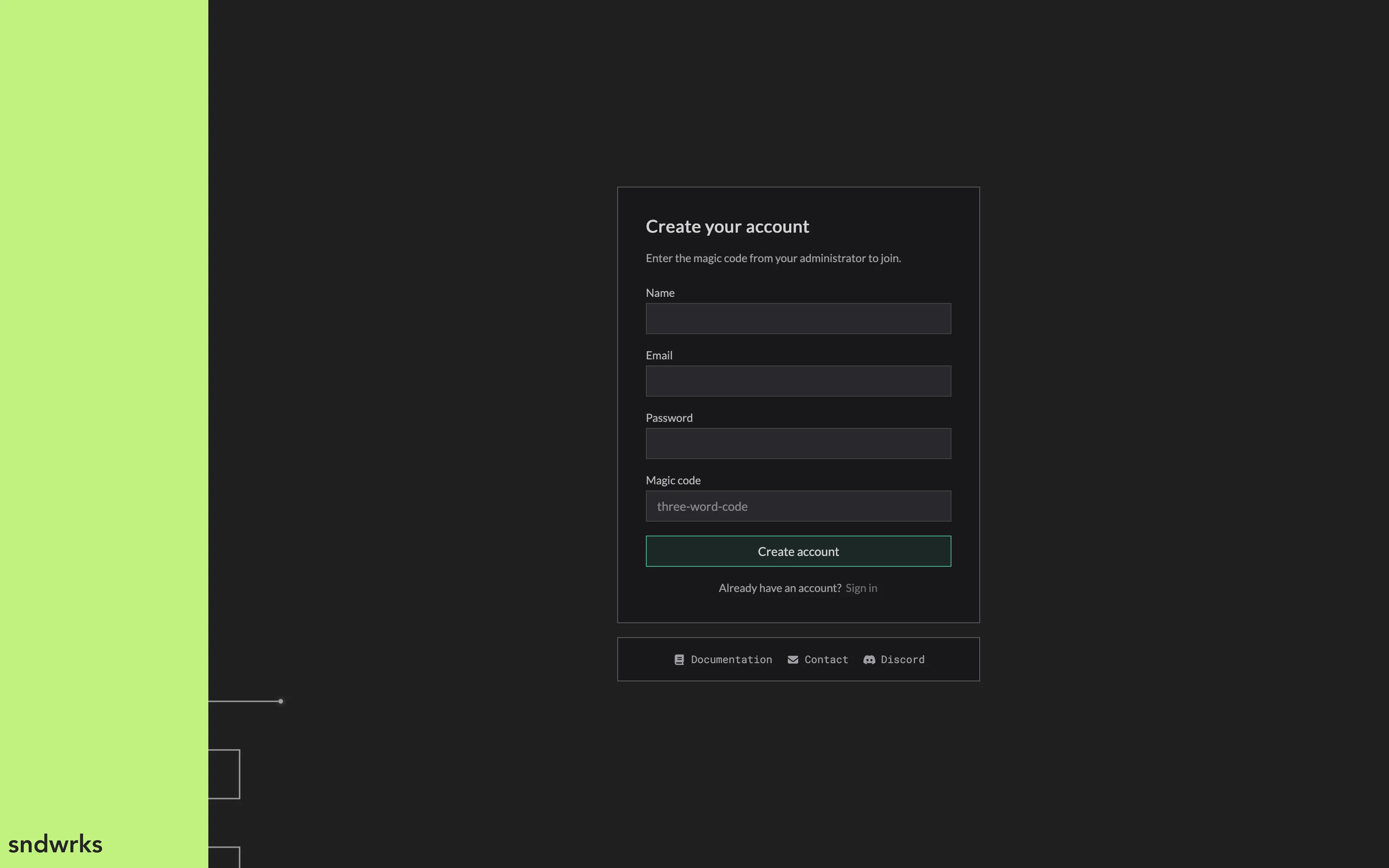
Section titled “Creating an account”Don’t have an account yet? Click Register and fill out your name, email, password (8 characters or more), and a magic code.
The magic code is a short three-word phrase. This code is in your system dashboard in the cloud app.
Your profile
Section titled “Your profile”Head to Settings → Profile to manage yourself. This panel is always available to you, no matter your permissions.
Here you can update your name, email, password (leave it blank to keep your current one), and your avatar color. There’s also a Sign out button.
Managing users
Section titled “Managing users”Settings → Users is where admins add and manage the team. You’ll need the users permission to see it.
You won’t be able to delete the sndwrks admin account, and you won’t be able to delete the last account.
New user defaults
Section titled “New user defaults”Pick the permission level that new accounts start with: Full, Enable only, or View only. This is what someone gets the moment they register, so set it to the most restrictive level that makes sense for your show and grant more from there.
We recommend using least privilege here. Give users only the access they need and no more.
Add a user
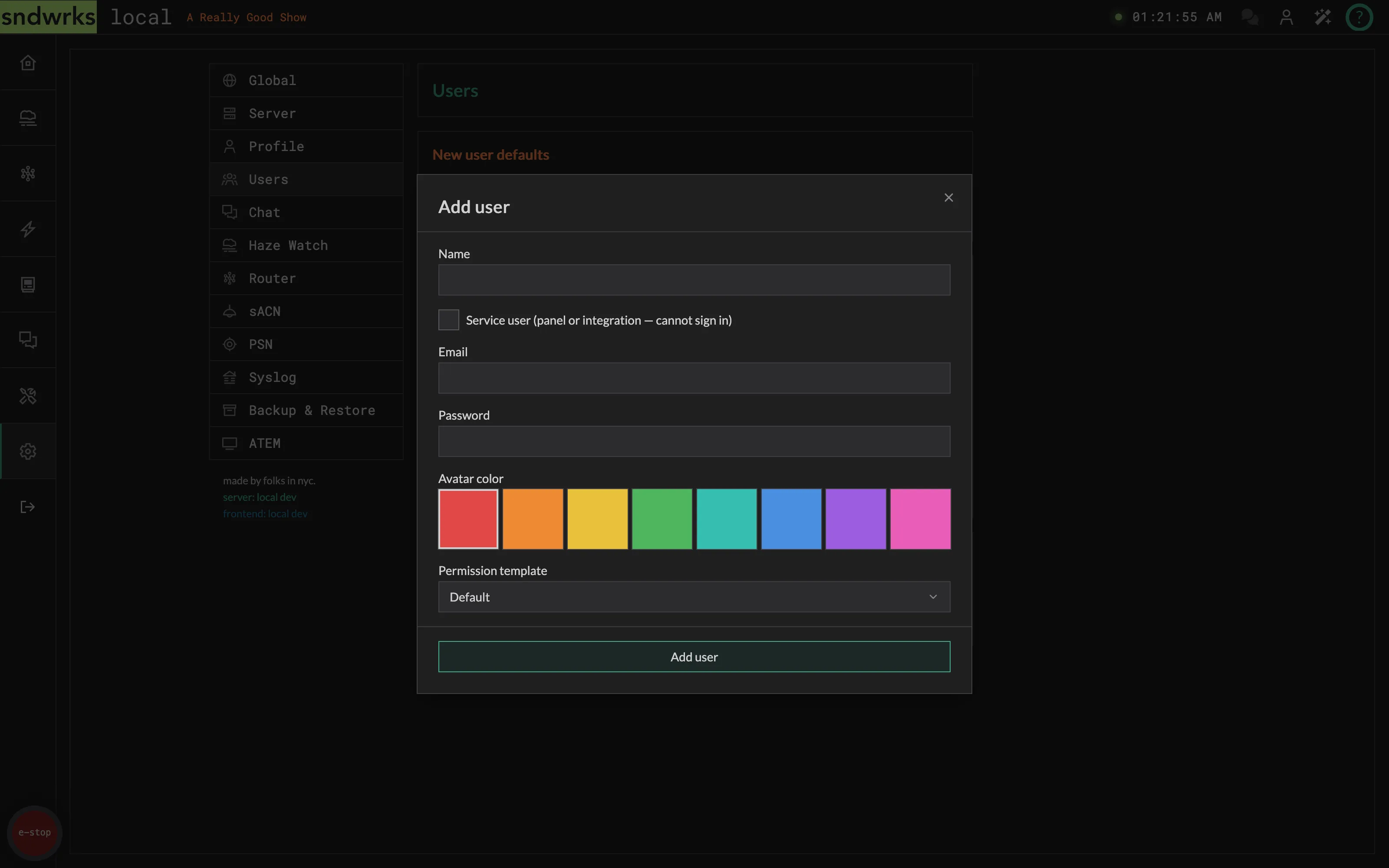
Section titled “Add a user”- Click Add user.
- Enter their name, email, and a starting password.
- Pick an avatar color.
- Choose a permission template.
- Click Add user to save.
The Full Access template is only available if you already hold full permissions yourself. That keeps folks from granting more than they have.
Permissions
Section titled “Permissions”Permissions decide what each person can see and do, section by section, right down to individual actions.
Templates
Section titled “Templates”Templates are quick starting points:
- Full — can do everything.
- Enable only — can view and toggle things on and off, but not create, edit, or delete.
- View only — can look, but not touch.
When you’re adding a user there’s a fourth choice, Default, which hands them whatever you set as the new-user default. It’s only on the add-user form — once an account exists, the permission editor offers the three real templates.
The permission editor
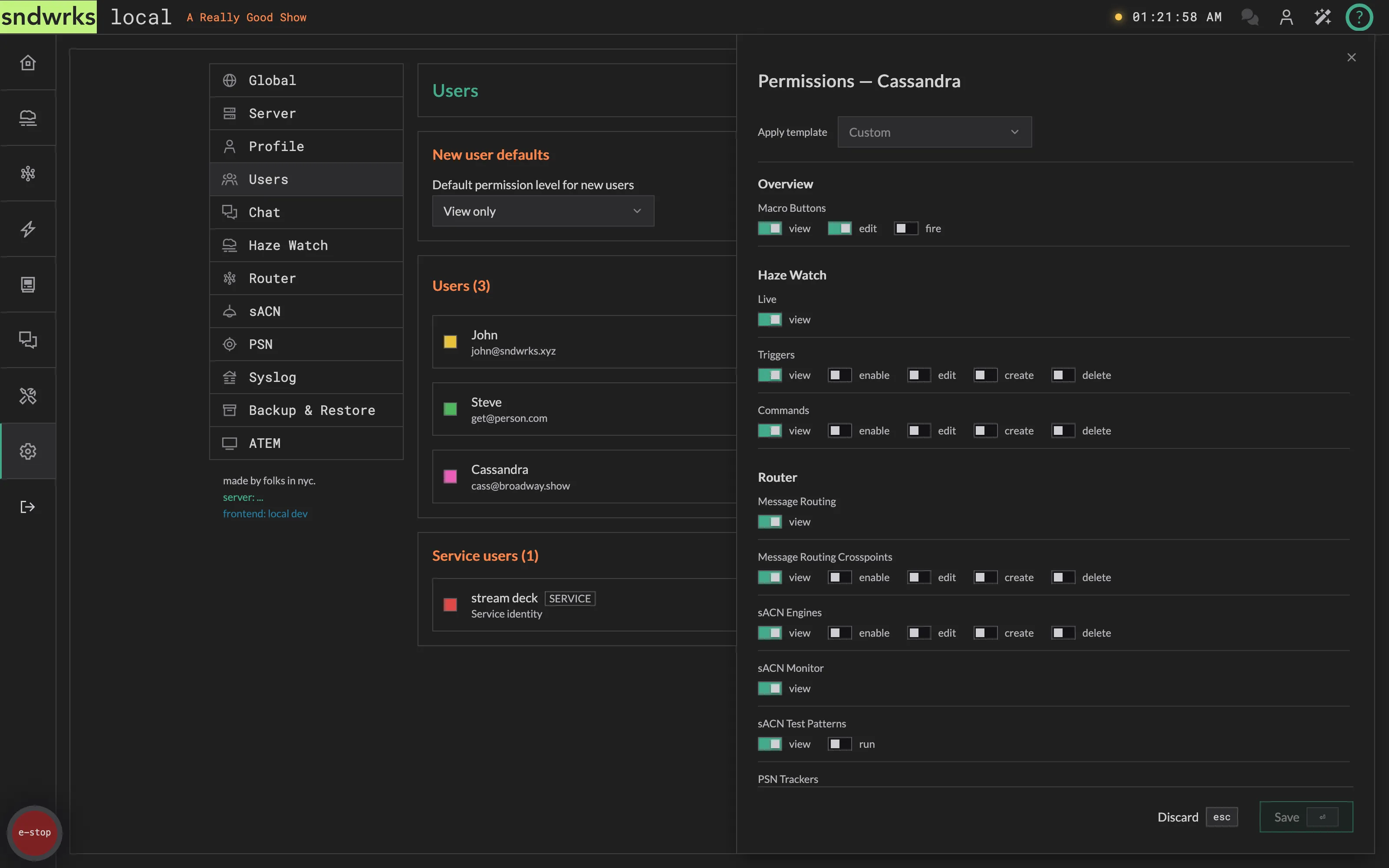
Section titled “The permission editor”Open a user and you’ll get a per-action editor grouped by section: Overview, Haze Watch, Router, Macros, Devices, Chat, Utility, and Settings. Each group has toggles like view, enable, edit, create, and delete (plus a few action-specific ones like fire a macro button or run a scan).
Toggles cascade. Turning on a higher-level action pulls in the ones below it, so granting edit also gives view. The Apply template dropdown flips every toggle to a preset at once; if you then tweak anything by hand it shows as Custom.
When you’re missing a permission
Section titled “When you’re missing a permission”You never get a blank screen or a mystery failure. What you get depends on what’s being gated:
- Buttons stay put and go dim. Hover one and a tooltip names exactly what you’re missing — “You need the Haze Watch Triggers Edit permission.” Nothing moves around, so the layout you learned yesterday is the layout you get today.
- Panels show a lock. A settings panel you can’t view opens to a small padlock and the same message, naming the permission to ask for.
- Tabs and menu entries disappear. Nav entries, page tabs, and the items in a row’s ⋮ menu are simply absent rather than dimmed — there’d be nothing to hover.
So a greyed-out button means “ask someone for this”, and a missing tab means “this isn’t part of your job on this show”.